Features

Accessibility

Genially’s accessibility tools and multi-modal formats help you design engaging interactive experiences for everyone.

Trusted by the world’s leading organizations

Brands_Logo_CocaCola_White.png
Columbia University company logo
Tik Tok organization logo
Brands_Logo_Johns-Hopkins_White.png
Volkswagen company logo
logo astrazeneca
L'Oréal organization logo
Figma company logo
Brands_Logo_CocaCola_White.png
Columbia University company logo
Tik Tok organization logo
Brands_Logo_Johns-Hopkins_White.png
Volkswagen company logo
logo astrazeneca
L'Oréal organization logo
Figma company logo
Features_Accessibility_HelpingYouBuildAccessibleContent.png

Accessible by design

Helping you build accessible content

At Genially we want to make interactive learning and communication universally accessible, ensuring no one is excluded. Published content is fully accessible, allowing users to explore, operate, and interact with the material in different ways.

Features_Accessibility_AddAlternativeTextToVisualElements

Describe what might not be visible

Add Alternative Text to visual elements

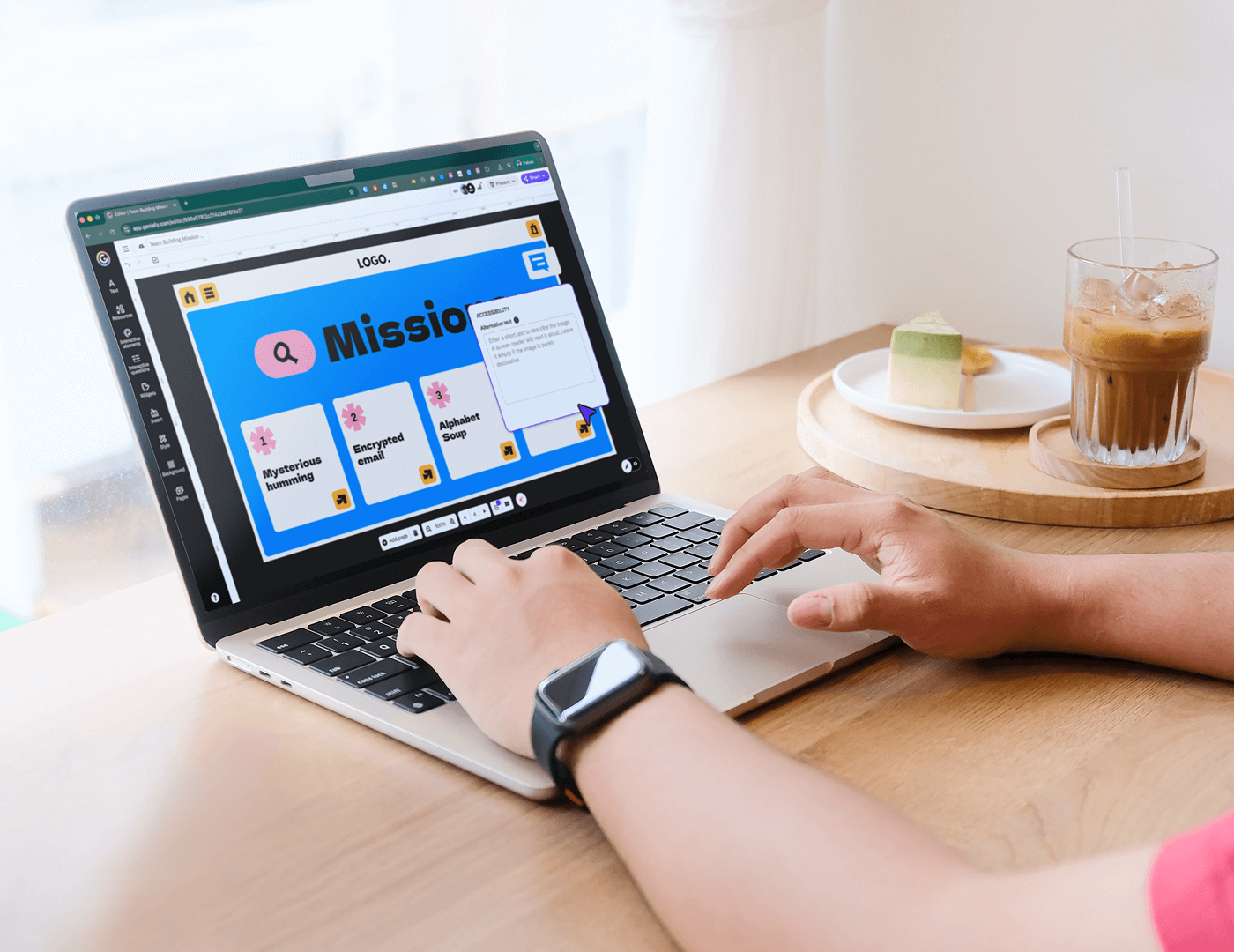
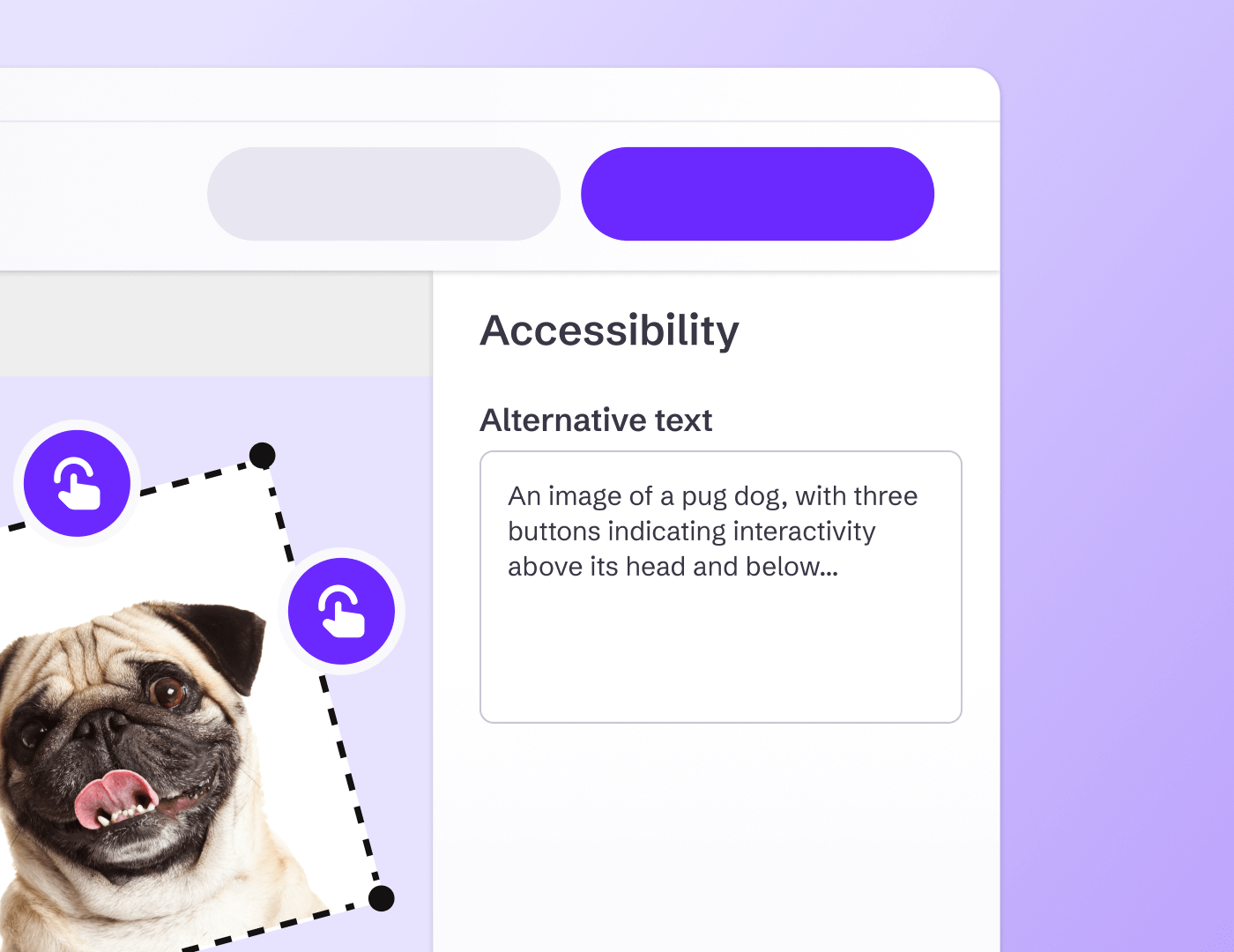
Apply descriptions to images, graphs, and activities so that screen readers can read them aloud. Alternative Text helps facilitate and enrich the browsing experience for those with visual and cognitive disabilities. 

Text Accessibility

Quickly check heading structure

The Text Accessibility feature helps you check and improve text hierarchy in one click. Proper headings (H1, H2, H3, H4, or Text) allow screen readers to detect the structure of the page and help users navigate to the section they need.

Logical order

Define the reading order

Set a logical reading order so that text-to-speech or screen reading software can read information sequentially. The Accessibility menu makes it easy: Just drag and drop elements to match the visual flow of the page.

Margaret Purdue

“Not only does Genially help to create a more engaging learning experience for students, but it provides an easy and accessible way for educators to start to integrate technology into their day-to-day classroom.”

Margaret Purdue

Intel® SFI Community Manager

Features_Accessibility_ShowPeopleWhatToClickOn.png

Visual hints

Show people what to click on

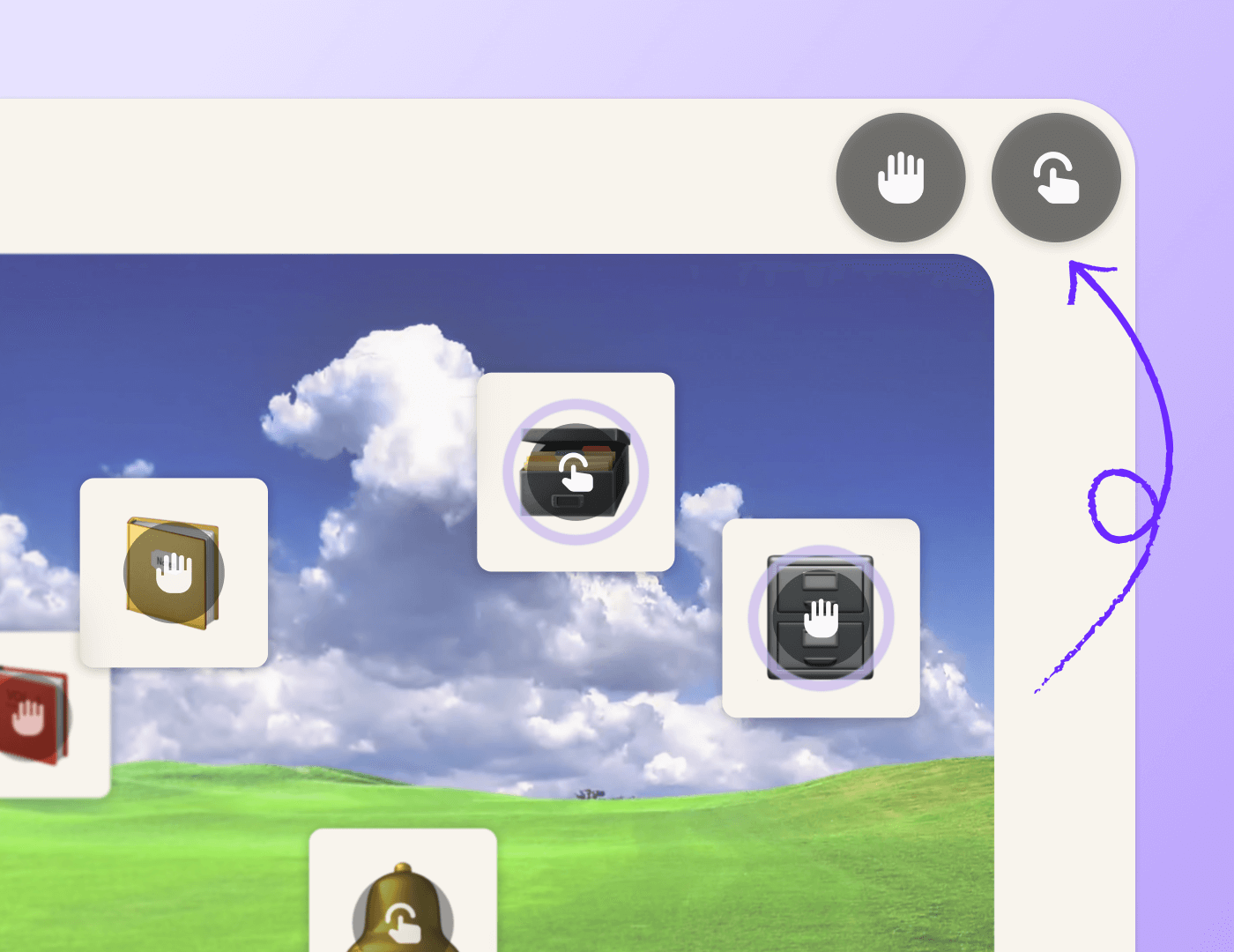
In Genially you can make any part of the screen interactive - but that might not always be clear to every user. Switch on pulsing Interactivity Icons to help people locate interactive and draggable elements.

Magnifier tools

Help users see content more clearly

Add a Full Screen interaction to any element; when users click it will expand to full-screen size. You can also activate the Zoom tool, allowing people to enlarge any part of the screen up to 200%. 
 

Make links accessible

Explain where links go to

Make sure that everyone can navigate hyperlinks and understand which webpage the link will take them to. As well as writing accessible link descriptions, you can add a more detailed description for screen readers.

Features_Accessibility_OfferLearnersAChoiceOfFormats

Personalization

Offer learners a choice of formats

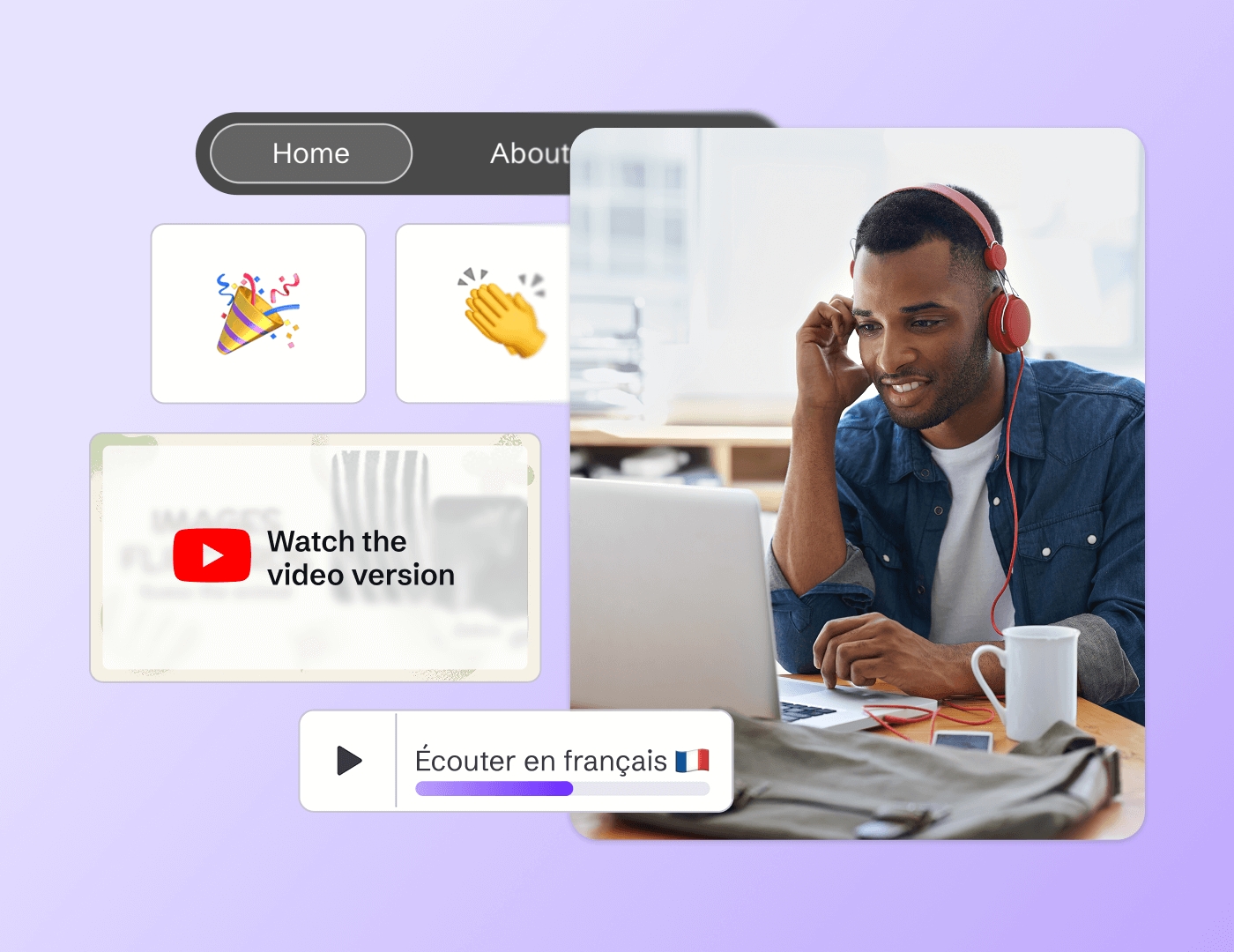
Genially is multimodal by design, allowing you to combine text, audio, video, visual and hands-on activities all in the same resource. Let learners choose how they consume information, according to their personal needs and preferences.

Discover more features

Discover more features _ No code Interactions and Animations.png

No-code interactions and animations

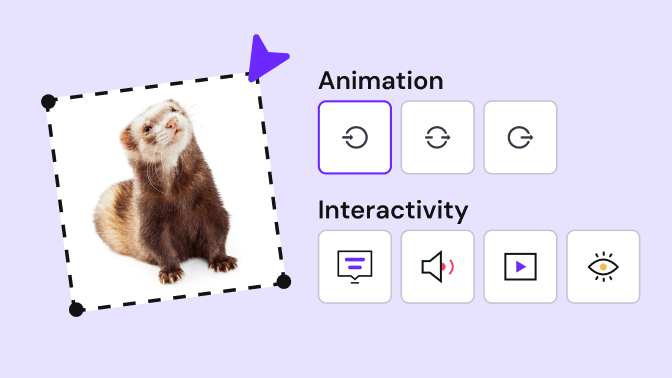
Make any kind of content interactive with Genially’s easy-to-use interactions and animations.

Discover more features _ Quiz Builder.png

Quiz Builder

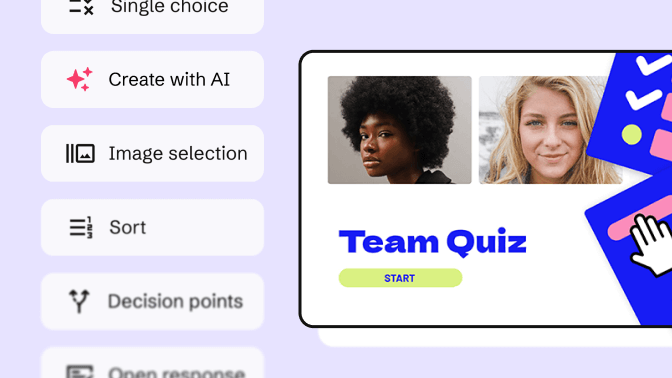
Use interactive questions to assess students and capture feedback from your audience.

Discover more features _ Widget Library.png

Widget library

Pre-built widgets help you gamify learning and create interactive app-style visuals.

Discover more features _ Security and Privacy.png

Security and privacy

Genially is a secure and certified platform that protects user data in line with key information security regulations. 

Frequently asked questions

Published Genially content is accessible in View mode, allowing users to explore the material with assistive technologies like screen readers and keyboard navigation. It meets key standards including Web Content Accessibility Guidelines (WCAG) 2.1 Level AA, and the EU Accessibility Act (EEA).  The Genially editor has multiple tools to help you make content more accessible, including Heading Hierarchy, Alternative Text, Reading Order, and Link Descriptions.  

The editor is intuitive and easy to use but not currently compatible with all assistive tools. We are actively working to make the interface more accessible for our diverse community of learning designers and content creators.

All elements are accessible and operable with assistive technologies.

Screen readers can detect text, visual elements, navigation buttons, widgets, interactive questions, as well as the type of interactivity applied to elements. You can add Alternative Text to visual elements including icons, graphs, and images.  


Note that when you group multiple elements, it’s not currently possible to label the group with Alternative Text. 

Genially works with many of the most popular screen readers and text-to-speech tools including NVDA, JAWS, and VoiceOver, and our team is constantly testing new tools for compatibility.  


If you encounter problems using assistive software with Genially, get in touch with our Support team.

For tips and guidance on how to design accessible content in Genially, check out our step-by-step tutorial: How to make your geniallys more accessible.  

To learn more about how Genially complies with WCAG standards and the EU Accessibility Act (EEA), explore our Accessibility Guide for Digital Content.