Features
Accessibility
Genially’s accessibility tools and multi-modal formats help you design engaging interactive experiences for everyone.
Trusted by the world’s leading organizations
Accessible by design
Helping you build accessible content
At Genially we want to make interactive learning and communication universally accessible, ensuring no one is excluded. Published content is fully accessible, allowing users to explore, operate, and interact with the material in different ways.
Compliance
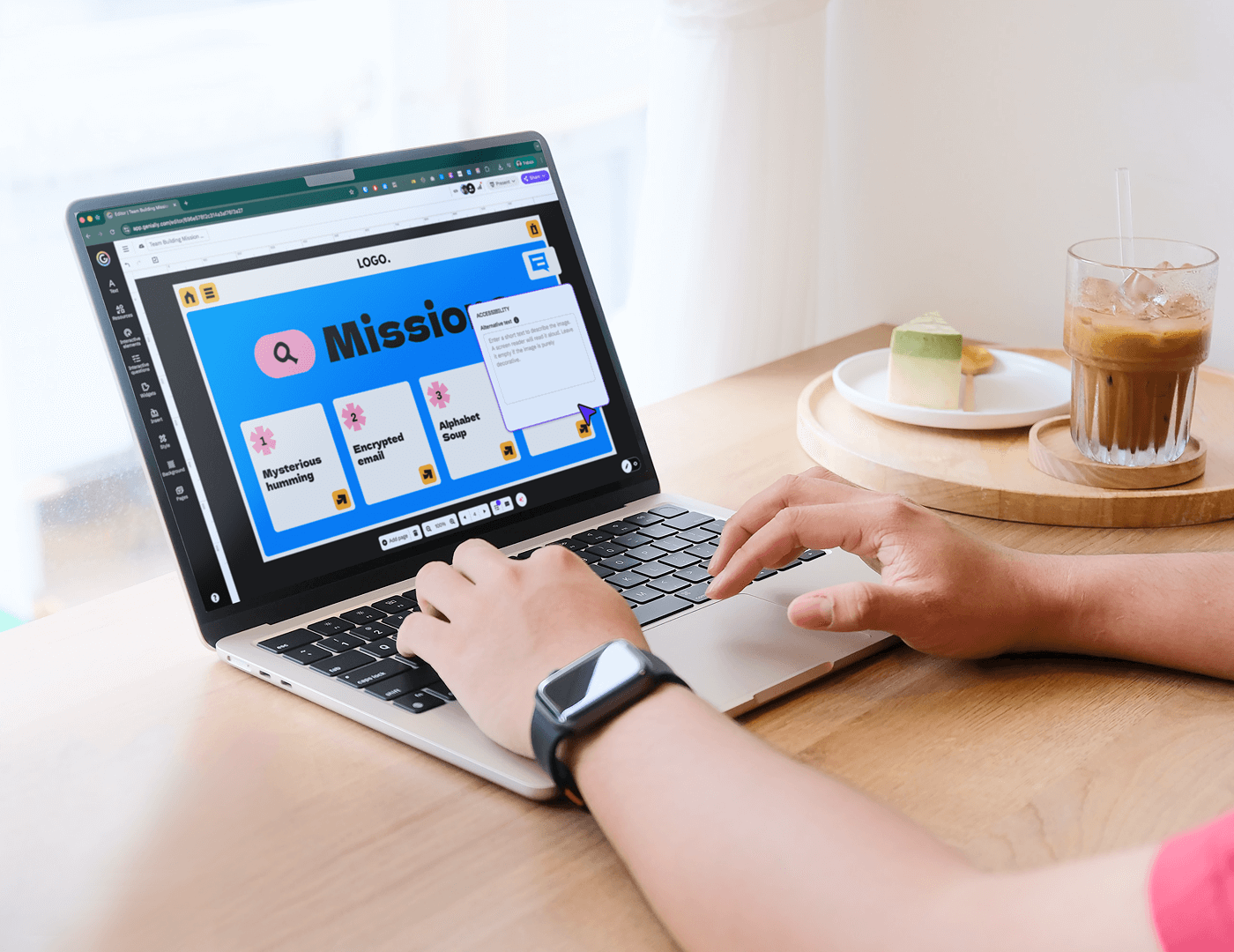
Published content in View mode complies with WCAG 2.1 Level AA and the requirements of the European Accessibility Act (EAA).
Keyboard navigation
Users can tab through different elements of the design using keyboard controls instead of a mouse or touchpad.
Screen readers
Published content is compatible with screen readers — when viewed online, in HTML, or SCORM format.
Free training
Learn how to design materials that are accessible and user-friendly with our free courses and webinars.
Describe what might not be visible
Add Alternative Text to visual elements
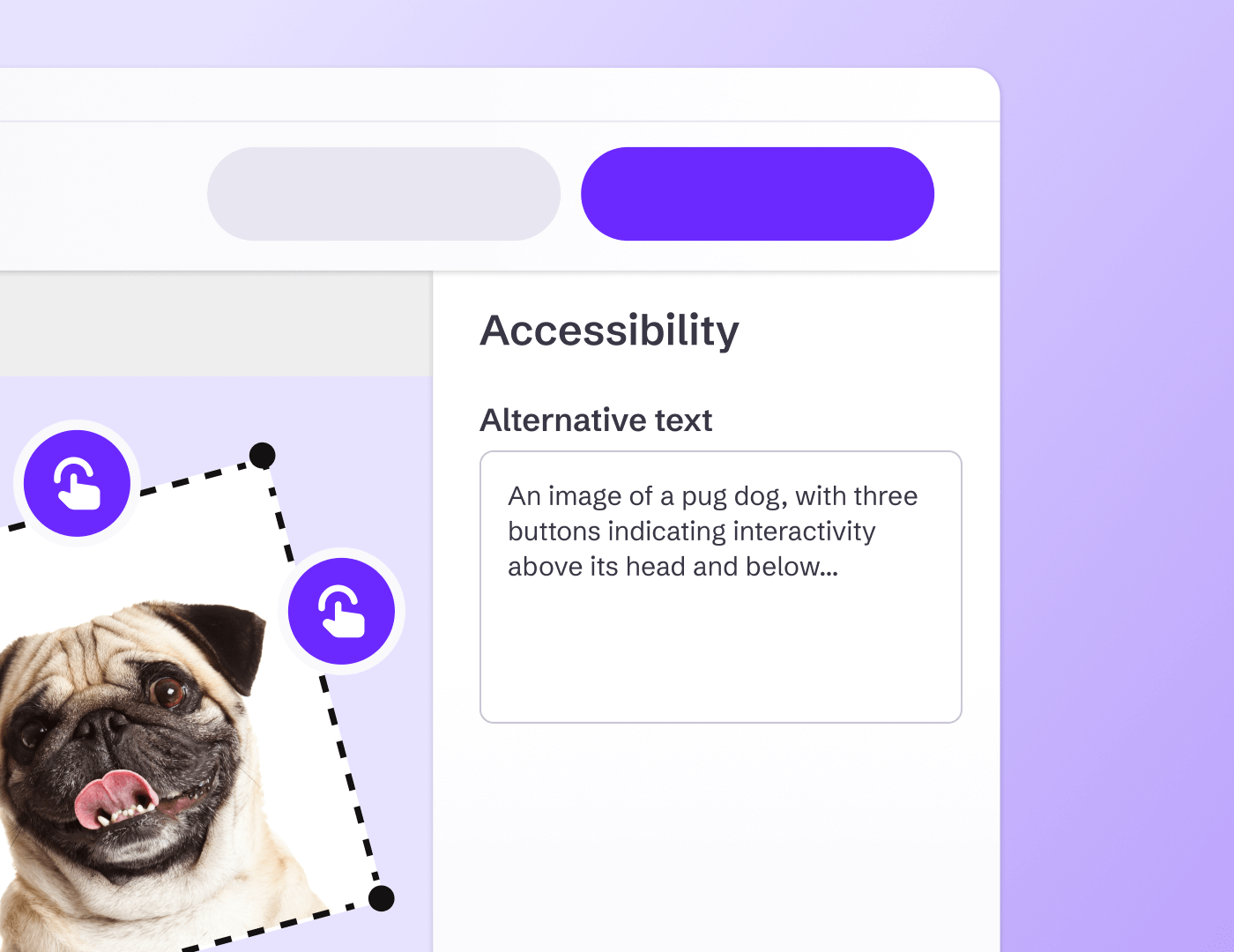
Apply descriptions to images, graphs, and activities so that screen readers can read them aloud. Alternative Text helps facilitate and enrich the browsing experience for those with visual and cognitive disabilities.
Text Accessibility
Quickly check heading structure
The Text Accessibility feature helps you check and improve text hierarchy in one click. Proper headings (H1, H2, H3, H4, or Text) allow screen readers to detect the structure of the page and help users navigate to the section they need.
Logical order
Define the reading order
Set a logical reading order so that text-to-speech or screen reading software can read information sequentially. The Accessibility menu makes it easy: Just drag and drop elements to match the visual flow of the page.

"Not only does Genially help to create a more engaging learning experience for students, but it provides an easy and accessible way for educators to start to integrate technology into their day-to-day classroom."
Visual hints
Show people what to click on
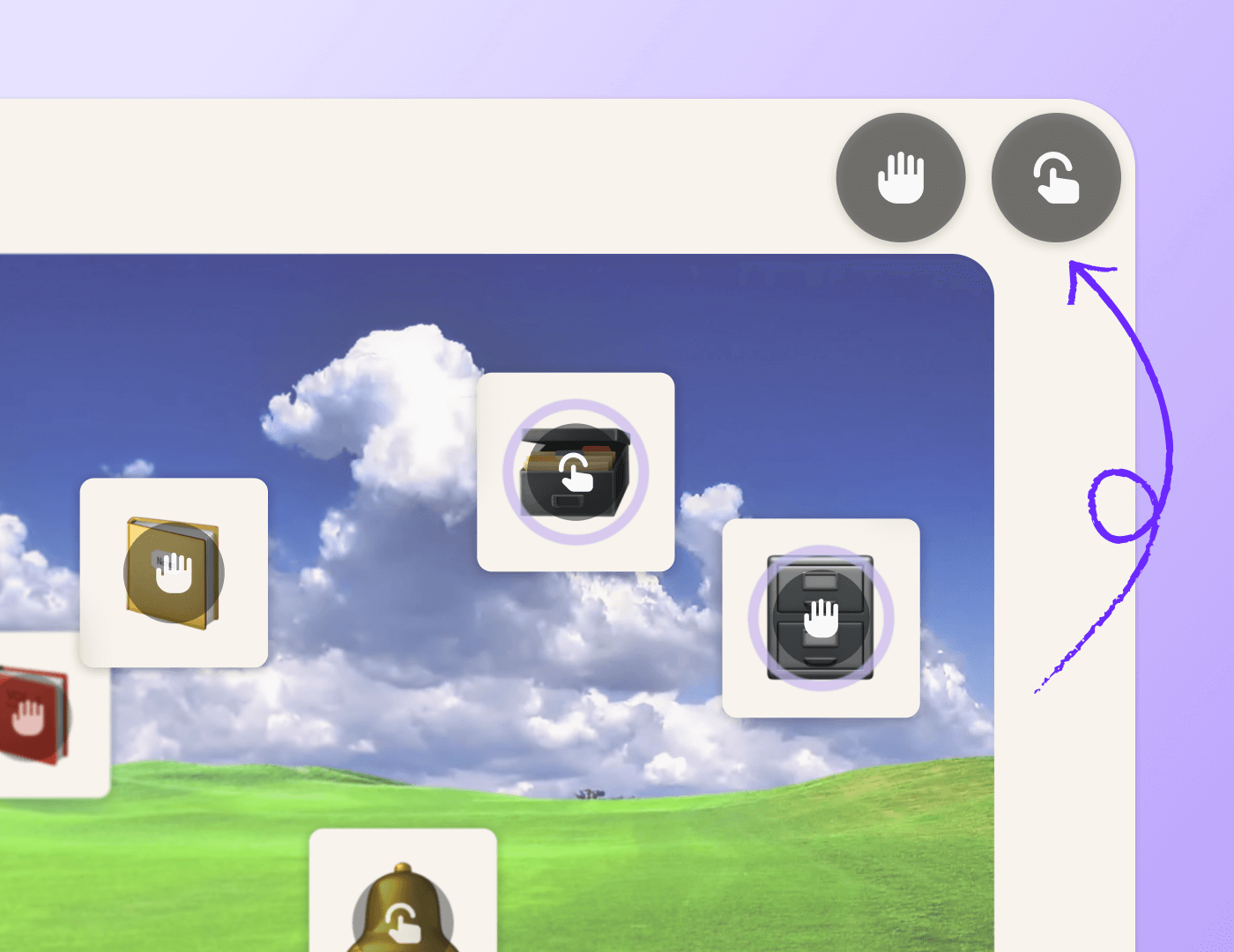
In Genially you can make any part of the screen interactive - but that might not always be clear to every user. Switch on pulsing Interactivity Icons to help people locate interactive and draggable elements.
Magnifier tools
Help users see content more clearly
Add a Full Screen interaction to any element; when users click it will expand to full-screen size. You can also activate the Zoom tool, allowing people to enlarge any part of the screen up to 200%.
Make links accessible
Explain where links go to
Make sure that everyone can navigate hyperlinks and understand which webpage the link will take them to. As well as writing accessible link descriptions, you can add a more detailed description for screen readers.
Personalization
Offer learners a choice of formats
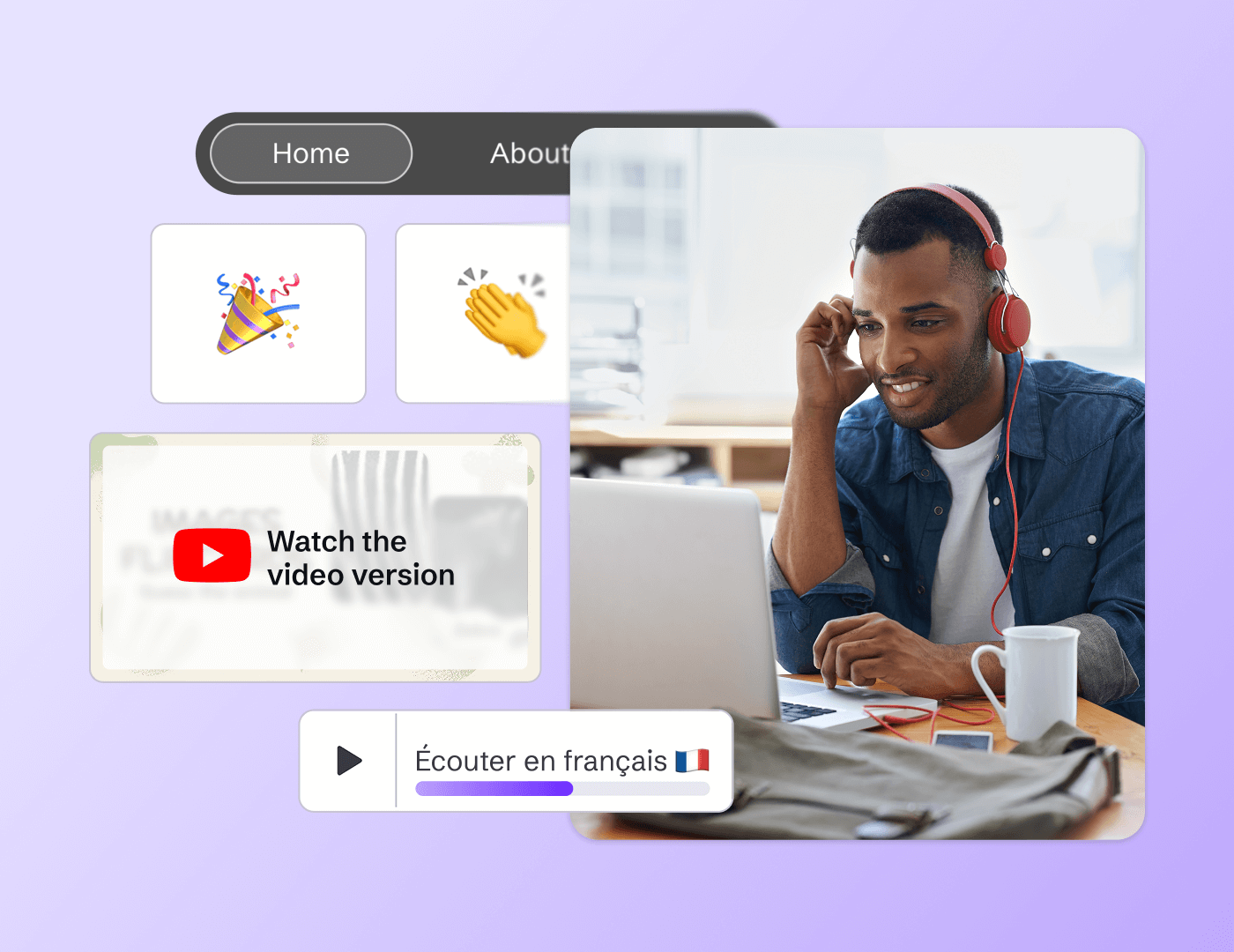
Genially is multimodal by design, allowing you to combine text, audio, video, visual and hands-on activities all in the same resource. Let learners choose how they consume information, according to their personal needs and preferences.
Audio descriptions
Text isn’t always best, especially for users with visual impairments. Add an audio alternative using the AI Text-to-Speech and Record Voiceover tools.
Transcription
Provide a text version of spoken word content or listening exercises to help people with auditory disabilities and non-native speakers.
Kinesthetic activities
Incorporate hands-on activities like drag-and-drop, paint, and click-to-flip to make digital learning more tactile and reinforce learning.
Access on demand
Add menus, buttons, and pop-up windows to give users quick and easy access to alternative formats.
Multi-sensory cues
Use visual and auditory cues such as animations and sound effects to reinforce actions, messages, and instructions.
Visual assessment
Use visual activities like Select the Image or Find the Pair as an alternative to traditional text-based questions and tests.
Multi-language support
Auto-translate your materials into over 100 languages, ensuring that they’re usable by people with different language backgrounds.
Frequently asked questions
Discover more features
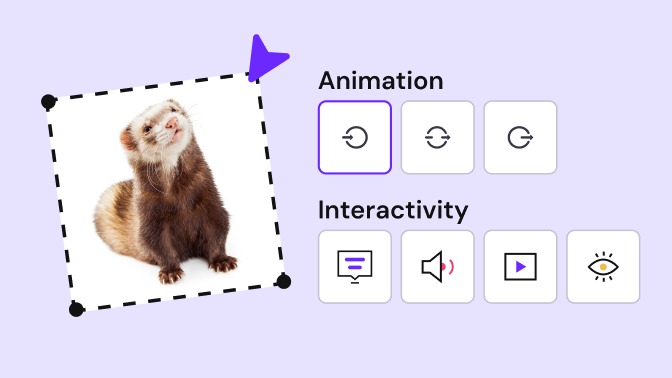 No-code interactions and animationsMake any kind of content interactive with Genially’s easy-to-use interactions and animations.
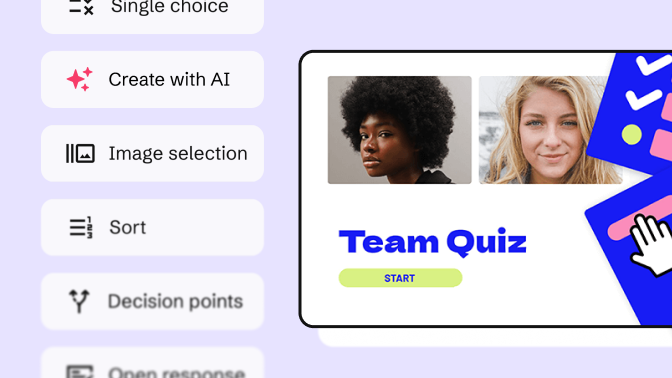 Quiz BuilderUse interactive questions to assess students and capture feedback from your audience.
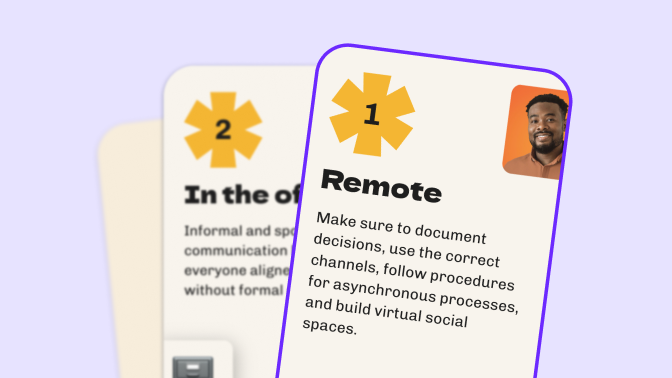 Widget libraryPre-built widgets help you gamify learning and create interactive app-style visuals.