GAME EXPERIENCE
Rear Window: Can you crack the case?
It's a dark, rainy night and something in the apartment opposite doesn't look quite right… Inspired by Hitchcock's classic and true crime podcasts, this interactive whodunnit challenges you to crack the case and give the police a reliable witness statement.
MADE FOR FUN. MADE IN GENIALLY.
Play for free
Switch on the sound for a fully immersive experience …. and make sure you don’t miss a vital clue.
Have fun while discovering:
Innovative ways to combine Genially features and achieve showstopping effects.
How to use gamification techniques like hidden content and locked levels.
Ideas for building suspense, storytelling, and progression into your content.
GENIALLY DESIGN SECRETS
How we built it
Wondering how to recreate the scenes from Rear Window? Our team is here to share their design tips and talk you through the steps, with ideas that you can apply in your own eLearning, Education, or Marketing content.
Interactive game-based experiences have heaps of benefits including engaging learners, building brand loyalty, and fostering a deeper connection with your audience. Read on to get ideas for using gamification - and narrative devices straight out of the movies!
“We created Rear Window to explore what was possible in Genially, help our team discover potential in the tool, and develop new ideas for gamification in training and learning. We build experiences like this to showcase new features and use cases, but most of all – to have fun!”
⎯ Paula
The creatives behind the curtains: Genially’s Instructional Design team Corina Ferrer, Paula Pla, Raquel Zurita, and Guillermo Verdejo.

Corina Ferrer

Paula Pla

Raquel Zurita

Guillermo Verdejo
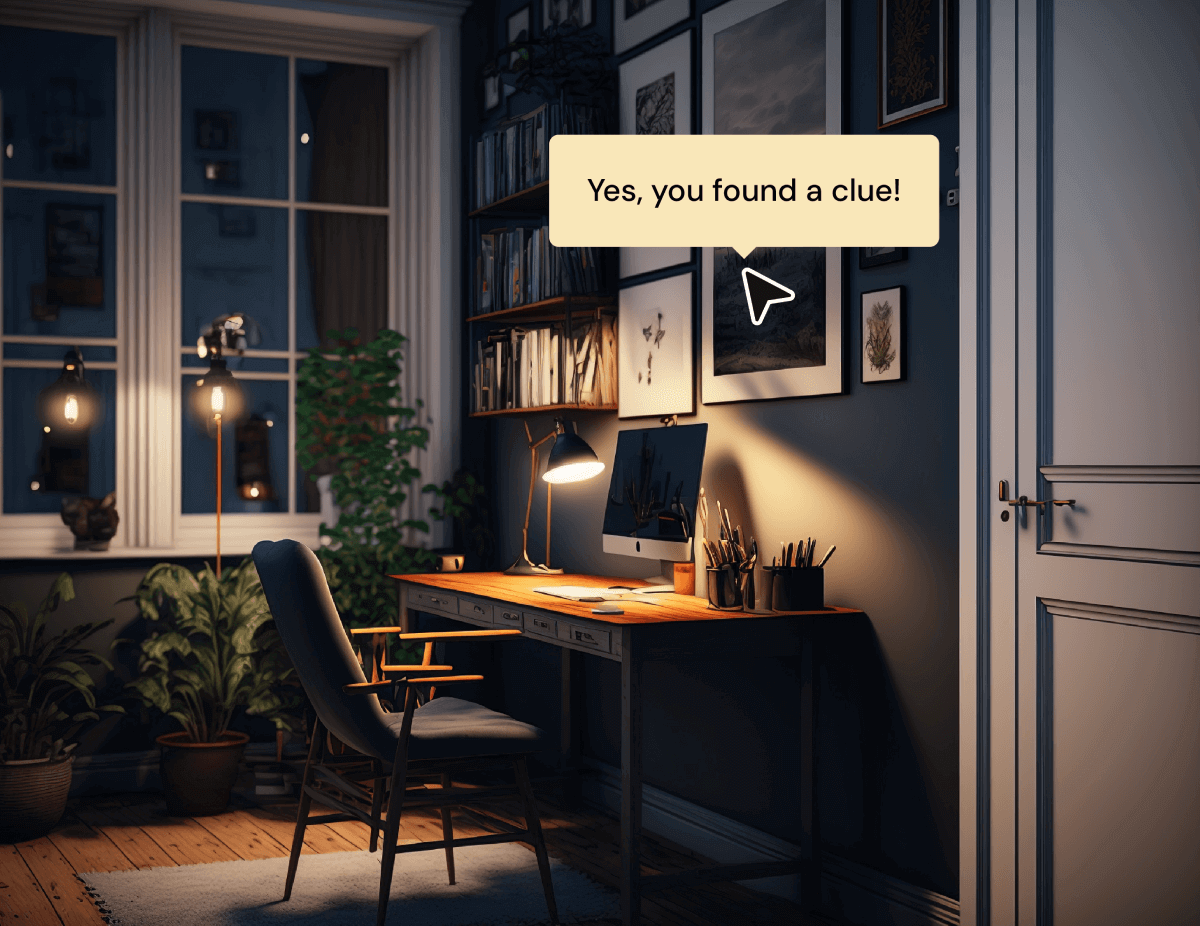
Objects in the office
Difficulty Level: 🌶️ Easy
Use it for: Orientation Activities, Onboarding.
Interactive images are handy for introducing people to new equipment, technology, spaces, and products. Hover-over labels allow users to explore each item and learn more.
How to do it:
- Upload an image.
- Add Interactive Areas to the objects.
- Apply a Tooltip to each interactive area.
- Add a Jump-to-page link to the telescope, taking users to the next level.
Features used: Interactive area, Tooltip, Jump to page
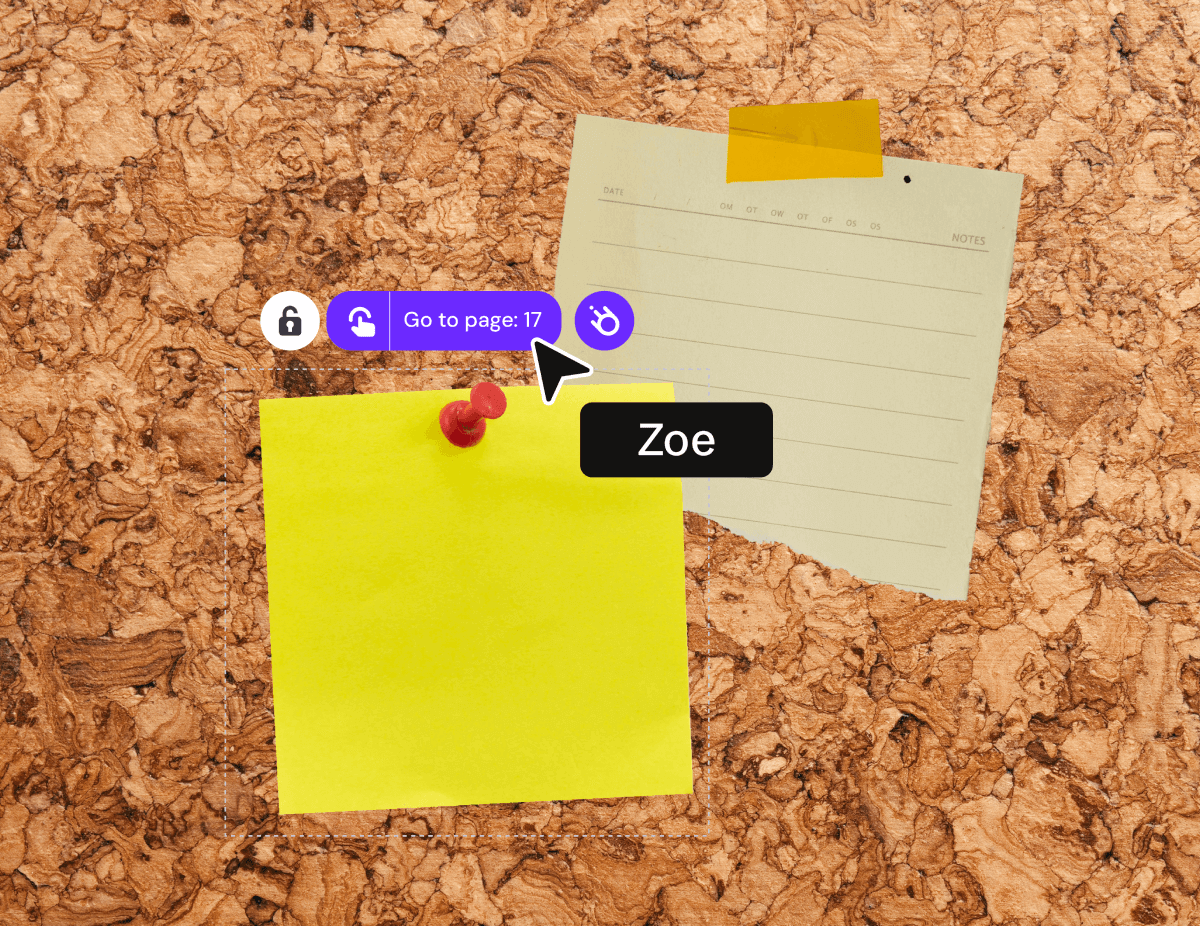
Post-it
Difficulty Level: 🌶️ Easy
Use it for: Highlighting elements, Displaying locked content.
Genially offers hundreds of hover and click-trigger animations. As well as creating a more engaging and “3D” experience, animations help you guide users and show them what to click on. To make the available post-its pop on the screen, we used a hover animation with Zoom effect. To show which were still locked, we used a Wobble effect.
How to do it:
- Select any element on the canvas.
- Add Animation
- Select the Hover Mouse trigger and choose an effect.
- Add Tooltips to label locked elements.
Features used: Hover Animation, Tooltip
Telescope
Difficulty Level: 🌶️ 🌶️ Medium
Use it for: Find the clue, Search for hidden objects.
Challenging players to search for a hidden object is a great way to increase focus and anticipation. Try swapping the telescope for binoculars, a magnifying glass or any other shape like a keyhole!
How to do it:
- Upload a transparent image in PNG format.
- Make sure this image is the top layer (use Designer Mode to check the layers).
- Add Tooltips to offer hints.
- Enable Drag-and-drop so that users can move the shape around the screen.
Features used: Hover Animation, Tooltip
TIPS FROM THE TEAM
Build atmosphere with a soundtrack
“Sound can be overlooked when designing content, but it makes a huge difference to the user experience. In Genially you have multiple ways to add music, audio clips, narration, and sound effects. We used the Insert Audio feature to add background sounds like rain and suspenseful music to make each page just like a ‘scene’ with a distinctive atmosphere.”
⎯ Raquel, Instructional Designer at Genially
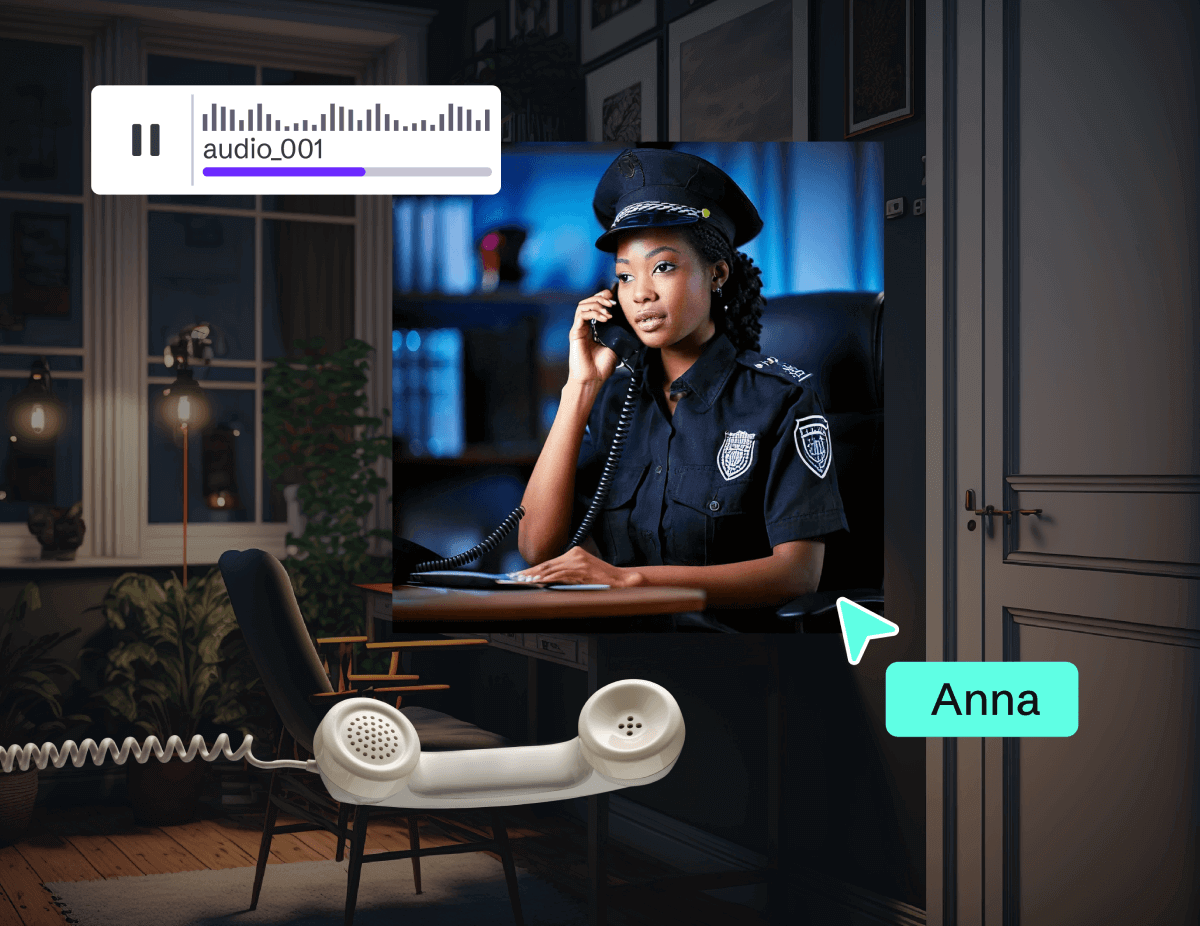
Video Call
Difficulty Level: 🌶️🌶️ Medium
Use it for: Storytelling, Step-by-step Guides, Tutorials.
Creating movie-style sequences in Genially is easier than you might think. Here we used a hotspot on the video doorbell to trigger the appearance of the phone handset. Remember that you can make an audio clip start to play at the same time as any animation.
How to do it:
- Add an Open Window interaction to the image that will trigger the action.
- In the Window, add the image that you want to appear.
- Apply an Entrance Animation to the image and the audio.
Features used: Interactive area, Tooltip, Jump to page
Evidence Board
Difficulty Level: 🌶️🌶️ Medium
Use it for: Menus, Homepages, Locked levels, Activities in a sequence.
Menus are a key gamification tool, enabling learners to check their progress and see which level or challenge comes next. Here we used the timer feature to control when each challenge becomes available. To make things extra interactive, we activated the Paint feature - allowing users to note down their suspicions.
How to do it:
- Create the board using images.
- Duplicate the page, creating one for each challenge.
- Use the Jump-to-page interaction to link to each challenge.
- Add a “Home” button so users can return to the main screen.
Features used: Timer, Tooltip, Jump to page, Paint
Hitchcock Hack: Intertitles
Difficulty Level: 🌶️🌶️ Medium
Use it for: Instructions, Storytelling, Pacing.
Intertitles (captions on screen that tell part of the story) are a classic film-making technique, dating back to the silent movie era. Alfred Hitchcock himself was a big fan! It’s an engaging narrative device that you can apply in your own learning and communication content. Reveal information step by step and focus your audience’s attention.
How to do it:
- Add a Timer widget outside of the canvas, so that it’s invisible to users.
- Apply an Open Window interaction to the timer, so that the Window appears when the time runs out. Here, we set the timer to 00:01.
- Inside the Window, add text boxes with Entrance Animations at staggered intervals.
Features used: Window, Entrance Animation, Timer
FEATURE IN FOCUS
Flipcards: Promote active recall
Click-to-flip cards are great for revealing content in a bite-size format, building anticipation, and encouraging people to remember what they’ve learned.
Try using flipcards for:
- Questions and answers
- Cause and effect
- Flashcards and memory games
- Vocabulary practice
In Rear Window we experimented by placing other interactive elements on top of Flipcards. Try adding a question, a button with click-to-reveal, or Scroll-to-element to take readers to another point in the page.
Find Flipcards in the Widgets menu.
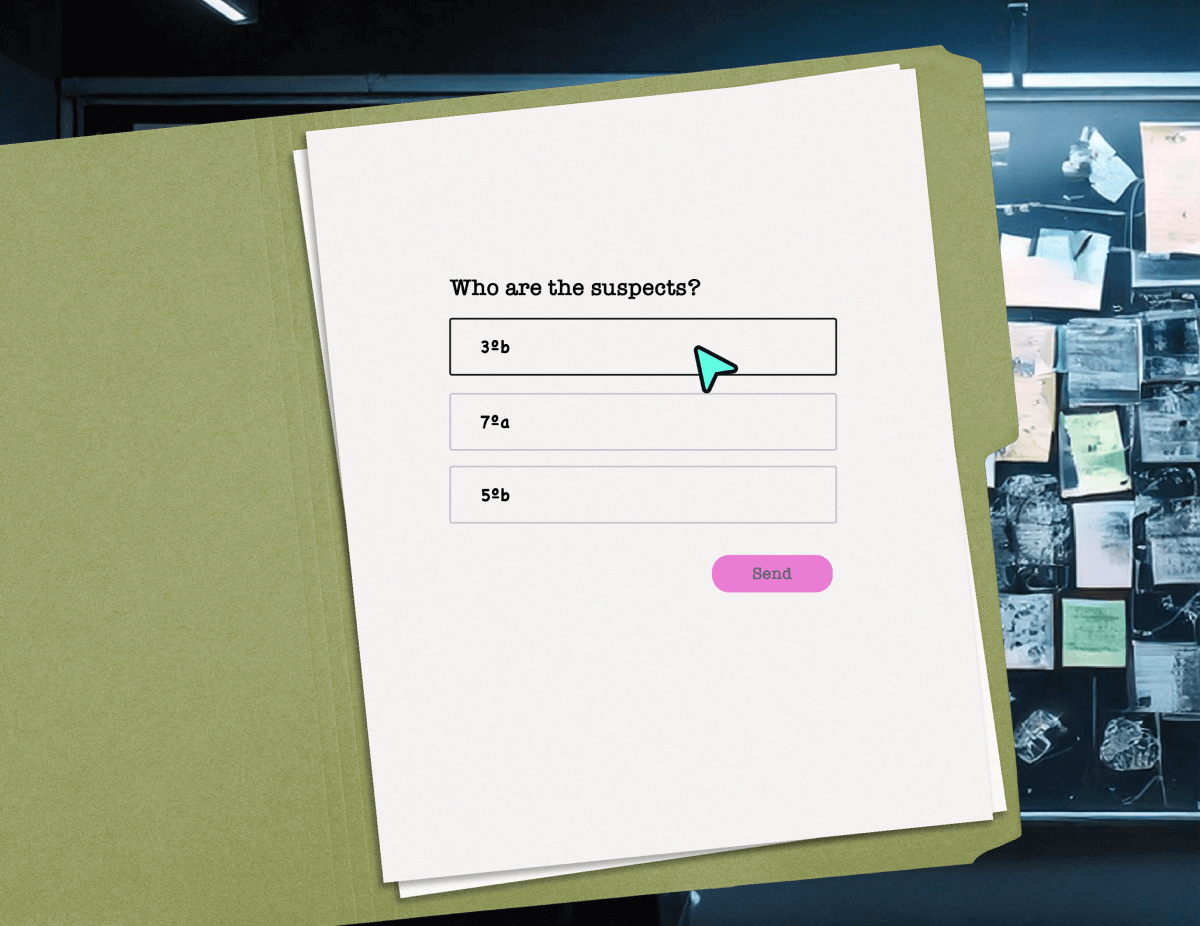
Witness Statement
Difficulty Level: 🌶️ 🌶️ 🌶️ Advanced
Use it for: Knowledge Checks, Quizzes, Tests, Consolidation.
Wrapping up with quiz questions encourages learners to reflect on what they’ve learned during the game. If you’re feeling adventurous, you can try combining questions with a bit of creative storytelling, as we did here - simulating the signatures on a witness statement.
How to do it:
- Add a Jump-to-page interaction to each section of the statement.
- Create your questions on a separate page.
- In the question configuration, select Go-to-next-page when the user answers the question.
- Add an Entrance Animation and Audio clip to replicate the image and sound of a pen signing the document. Magic!
Features used: Questions, Jump to page, Entrance Animation, Audio
Locked Door
Difficulty Level: 🌶️ 🌶️ 🌶️ Advanced
Use it for: Escape Games, Locked Levels.
A secret code is a fun gamification device for motivating learners and encouraging them to analyze information. In Genially you can create locks in multiple ways: by using a page password or building your own interactive code.
How to do it:
- Upload an image of a padlock, keypad, or code.
- Add an Interactive Area over each number.
- Use the Reveal interaction to create a connected “chain” of click-to-reveals. When the user clicks on the first correct number, the interaction on the second number in the sequence becomes available.
- Add a Jump-to-page link to the last number in the code, taking the user to the next page or level.
- Provide hints by adding Tooltips to the wrong numbers.
Sounds tricky? Give it a go - you can crack it!
Features used: Reveal, Jump to page, Tooltip, Interactive Area
TIPS FROM THE TEAM
Generate a fantasy world using AI
“Every game needs great graphics and sound effects, and artificial intelligence makes it easy for anyone to conjure up their own imaginary world without design or video-production skills. We used Genially’s text-to-speech function to generate the 1950s-style voiceover, and Firefly to create images of the apartment building and the police station.”
⎯ Corina, Instructional Designer at Genially
→ Learn more about Genially’s AI features.
Elevator
Difficulty Level: 🌶️ 🌶️ 🌶️ Advanced
Use it for: Creating scrollable content inside a static frame.
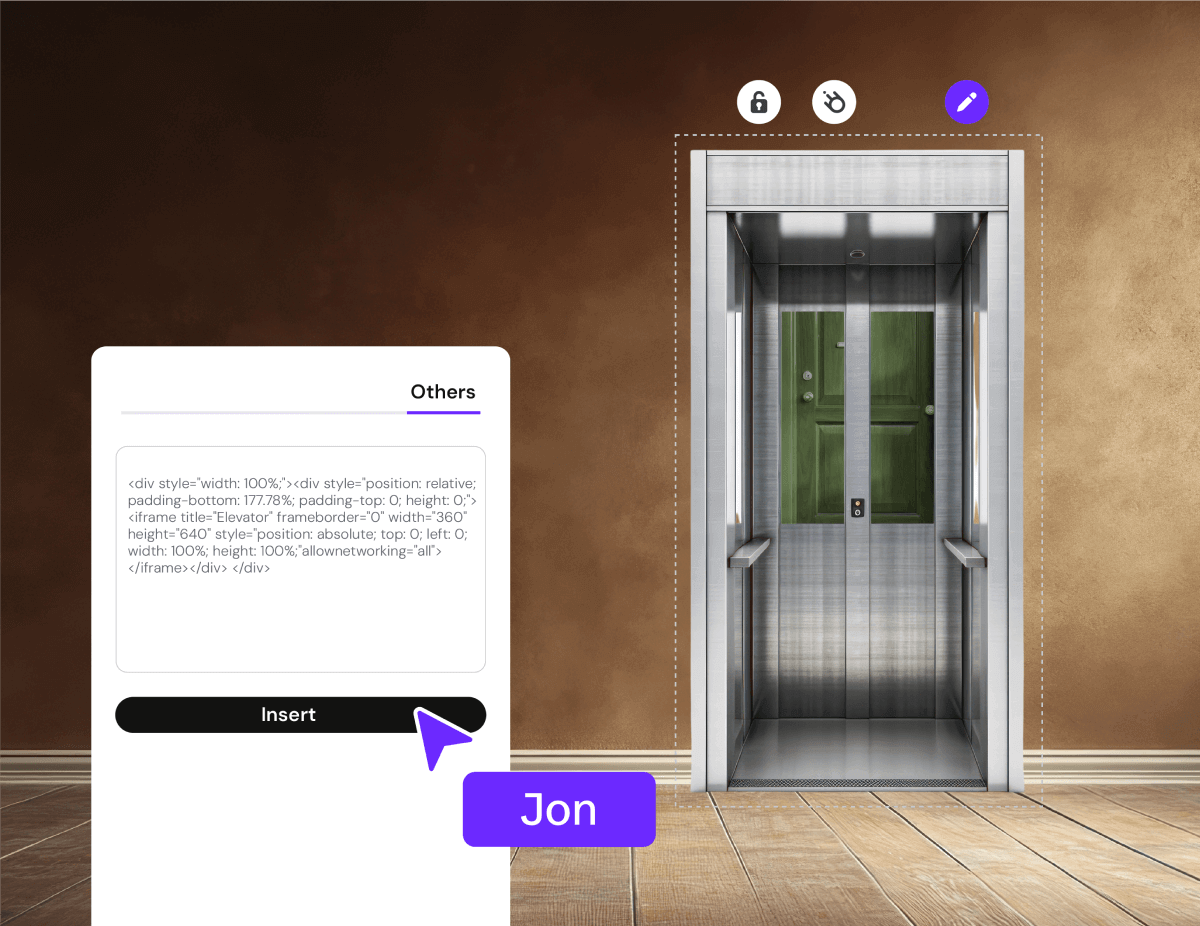
Don’t forget that Genially allows you to embed one design inside another! Here we created a separate genially for the elevator, on a canvas with mobile (9:16) dimensions. Learn more about designing mobile-optimized content.
How to do it:
- Create the content you want to embed, in mobile format.
- Extend the length of the canvas to increase the scrollable area.
- Publish and copy the iframe code.
- In your original design go to Insert > External Content.
- Paste the iframe code of the mobile design into the page.
* Pro Hack: We used a Flipcard inside the mobile canvas, allowing users to scroll in the opposite direction. We placed a button on top of the card, then used a scroll to element interaction to jump to the elevator doors.
Features used: Embed iframe, Mobile Canvas, Scroll to element, Flipcard
FEATURE IN FOCUS
Image Slider: A Visual Learning Tool
A pretty way to present pictures? Carousels and image sliders can do much more! In Rear Window, we used this interactive gallery to simulate CCTV snapshots with hidden clues.
Use image sliders to encourage learners to identify the right answers, evaluate a series of options, or hone in on specific details.
Find a selection of carousels in the Widgets menu.
Feeling inspired? Play again
Check out our other immersive game experiences: Amazon and Two Worlds, both free to play in Genially Academy.